
Mac window managers compared
Every window manager moves and resizes windows. The difference is how you tell it where they go, and what it costs.
At a glance
| App | Price | How you arrange windows | Runs on |
|---|---|---|---|
| macOS tiling | Built in | Drag to screen edges and corners; fn + Control + arrow keys | macOS 15 Sequoia and later |
| Tidy Screen | Free | Draw on a resizable grid; saved layouts with global shortcuts | macOS 13 and later |
| Rectangle | Free and open source; Rectangle Pro is paid | Keyboard shortcuts; drag to screen edges and corners | macOS 10.15 and later |
| Magnet | Paid, on the Mac App Store | Drag to screen edges and corners; keyboard shortcuts | See the Mac App Store |
| Divvy | Paid, with a free trial | Draw on a grid; keyboard shortcuts | Mac and Windows |
Three ways to place a window
Snapping to edges. Drag a window to the side or corner of the screen and it fills that area. It’s quick and needs no setup, but you’re limited to the preset zones. macOS tiling, Rectangle, and Magnet all work this way.
Keyboard shortcuts. A keystroke sends the focused window to a preset position, such as the left half. Rectangle is built around this, and most window managers include it.
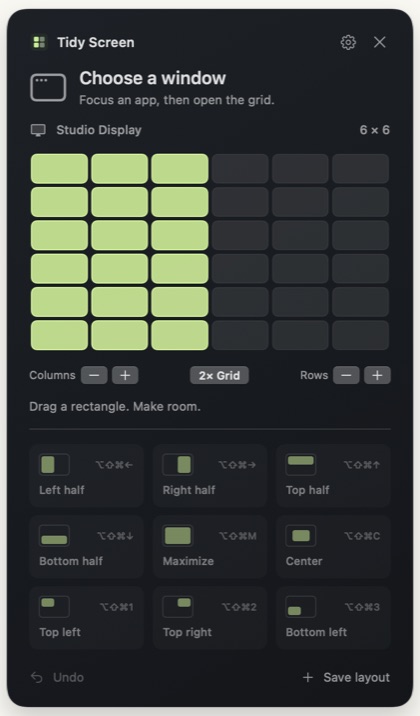
Drawing on a grid. Open a small grid and drag across the part of the screen you want. You can choose any size, such as two thirds or a centered column, without memorizing anything. Tidy Screen and Divvy work this way.
Which one should you use?
- macOS 15 or later, and you only need halves and quarters: try the built-in tiling first.
- You want to draw any size on a grid, for free: Tidy Screen. It also saves layouts with global shortcuts, adds gaps between windows, and works on macOS 13 and 14.
- You live on the keyboard and want open source: Rectangle.
- You prefer buying through the Mac App Store: Magnet.
- You need the same tool on Windows: Divvy.
Using Divvy today? Read about switching to Tidy Screen.